
Note-taking is easy. Building an Obsidian vault that actually helps you think is not. Most tools make the first part convenient and leave the second part entirely to you.
Eight years ago a friend recommended a note-taking app called Zim Wiki. I had no idea what a note-taking app was, how it differed from a notepad, or why anyone would want one. Then I found TiddlyWiki, and something about it felt like a real notebook. The entry cost was learning Markdown — confusing at first, but the kind of investment that pays back steadily. From there, the path wound through Boostnote, then Joplin, which felt like a genuine upgrade in 2019, then Notion — which made everything feel effortless until I got lost in customizing nested databases and forgot I had notes buried inside them. That is, of course, the opposite of why you take notes.
After months of switching back and forth, Obsidian finally stuck — not because it was the most polished tool, but because it had exactly one thing I couldn’t negotiate away: every note is a plain Markdown file on your machine, owned entirely by you.
This is how I set it up, and more importantly, why.
- What Personal Knowledge Management Actually Is
- Why It Matters More for Developers
- There Is No Perfect System
- Why Obsidian (and Why You Don’t Have to Switch)
- What I Use It For
- Vault Structure
- Capturing from the Web
- The Theme
- Core Plugins I Actually Use
- Community Plugins
- Obsidian Sync
- Where to Start
What Personal Knowledge Management Actually Is
I forget things quickly. Unless something is organized in a way my brain can retrieve it, it disappears — as if I never encountered it at all. Writing a note in my own words, or doing my own research while connecting pieces together, is what makes things stick.1 The act of linking is the point: our brains don’t hold scattered pieces well. Without connections, information is likely forgotten, or worse, it never fully makes sense to begin with.
PKM — Personal Knowledge Management — is the practice of capturing, organizing, and connecting what you learn so it stays useful beyond the moment you encountered it. The difference between a notes dump and a knowledge system is links. When a note you wrote six months ago connects to something you’re working on today, you’ve built a system. Without that connection, you’ve built a list.2
Why It Matters More for Developers
Software development is one of the most knowledge-dense fields there is. You’re constantly holding context in your head — architecture decisions, library quirks, debugging patterns, half-formed mental models from documentation you skimmed two weeks ago. Most of that disappears the moment the task is done. You solve the problem, close the tab, and three months later you solve the same problem again from scratch.
A PKM system changes that. Decisions get documented with their reasons, not just their outcomes. Debugging sessions that took four hours get distilled into a three-sentence note. Patterns you notice across projects become explicit rather than vague intuition. The compounding effect is real: a year of consistent notes is a searchable, linked record of how your thinking evolved — and a shortcut to not repeating the same mistakes.
There Is No Perfect System
I’ve read about so many methods that claim to show you how to organize your thoughts. The honest conclusion after years of trial and error is that you have to figure out what works for your own brain. Methods like Zettelkasten3, PARA4, or Johnny Decimal each suit a specific way of thinking. Some people prefer one large bucket, others want strict structure, others want everything indexed. None of them is wrong, and none of them is universally right.
If you find yourself spending more time reading about note-taking systems than actually using one, that’s worth pausing on. It’s often procrastination — and goals built from avoidance rarely stick — or sometimes a genuine difficulty with focus that deserves honest attention, not a better productivity framework. I was diagnosed with ADHD at 29 and had no idea until then. Looking back, I could recognize the symptoms clearly: energy spent on things that didn’t matter, including an extended obsession with finding the perfect note-taking setup. The diagnosis didn’t change the tools I needed. It clarified why I’d been circling them for so long.
Why Obsidian (and Why You Don’t Have to Switch)
If Notion works for you, stay. If Logseq fits how you think, stay there too. The goal is a system that supports your thinking, not a tool with the best reputation.
The reason I landed on Obsidian is its core constraint: notes are plain Markdown files in a folder you own. No proprietary format, no sync lock-in, no risk of a company sunsetting your data. The files work in any text editor, on any machine, without the app. That durability matters when the vault becomes something you depend on.
The second advantage is the plugin model. Obsidian ships with a capable core and then stays out of the way. Every significant workflow adjustment — how search works, how your daily notes are structured, how you navigate the vault — is handled by plugins you choose and configure. The blank-slate model has a real upfront cost, but it produces a workspace shaped around how you actually think.
What I Use It For
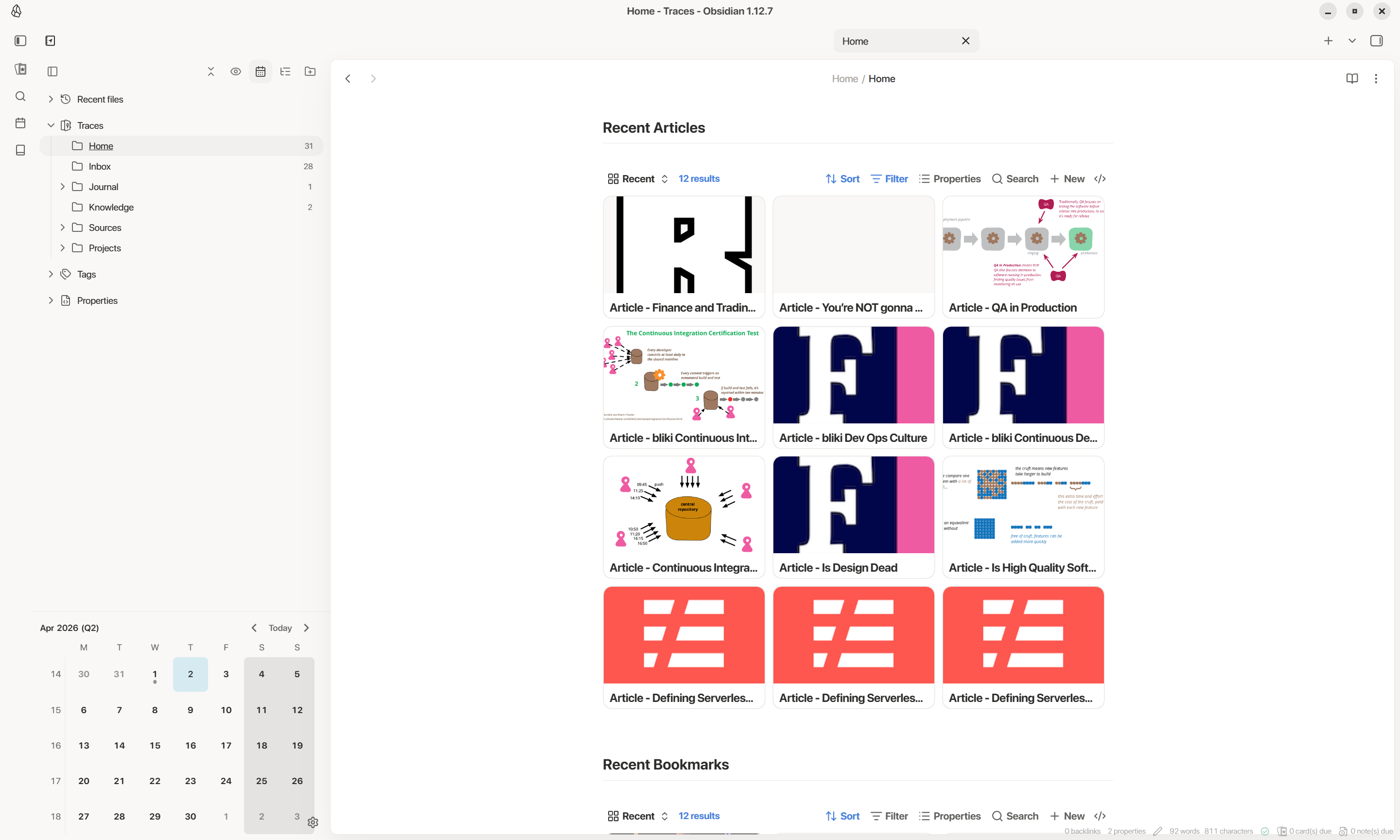
The vault handles capture, study, and reflection. I use it for taking notes on specific resources — courses, books, podcasts, articles — which keeps me attentive to what I’m working through and creates a record of how I thought about a topic at a given point in time. Beyond that: daily journaling, loose observations, reflections, meditations. Anything that moves through my mind with genuine interest has a place here. The scope is broad by design — a narrow system creates the friction that makes you avoid it.
Vault Structure
The way you organize the vault matters as much as the plugins you install. I keep mine flat — a handful of top-level folders, no deep hierarchies — with links between notes doing the work that folders can’t.
- Home — root notes that link out to every topic area. Some call these Maps of Content (MOCs). Navigation starts here.
- Inbox — any note that isn’t fully formed yet. A staging area for work in progress.
- Journal — has five sub-folders: Daily for regular entries and loose captures; Brainstorming for session notes tied to a specific idea; Meditations for abstract thoughts and anything philosophical; Patterns for tracking cues, habits, reactions, and triggers I want to keep visible to myself — I have a post on breaking behavioral patterns; and Yearly for annual reviews that I return to when I notice myself heading toward the same mistake.
- Knowledge — notes that are unlikely to change for months or years: math concepts, distributed systems fundamentals, critical thinking frameworks. Intentionally one flat bucket with no sub-folders.
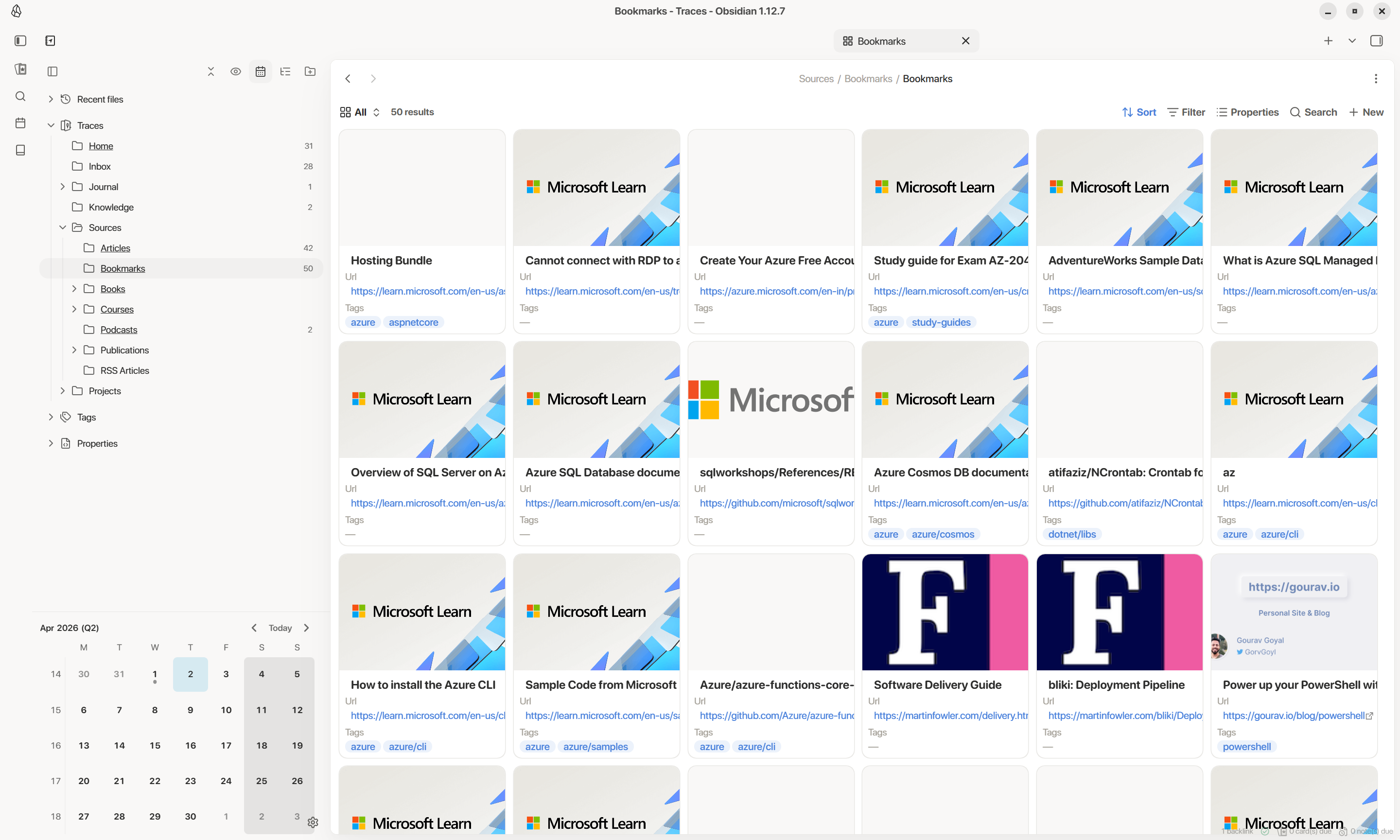
- Sources — things I captured from the outside: articles, bookmarks, videos, podcasts, courses. Anything I didn’t author but found valuable enough to keep.
- Projects — not only technical projects, but anything with a deadline: interview preparation, blog posts, learning a specific skill. Most entries here eventually move to Archive once they’re done.
- Archive — where notes go when they’re no longer active. Nothing gets deleted.
Capturing from the Web
I used to use Pocket before it shut down, then Instapaper and Readwise. Now I use Obsidian Web Clipper, which lets you fully customize how pages are captured and where they land.
I have two profiles configured in the extension:
-
Bookmark — the default. Saves only the metadata (title, URL, date, tags) into
Sources/Bookmarks. Quick capture, no content saved. -
Articles — identical to Bookmark but also saves the full article body into
Sources/Articles. My own copy, fully searchable inside the vault.
On top of both folders I have Bases views — one for recent bookmarks, one for articles pending a read. Switching between profiles is two clicks via a dropdown in the extension.
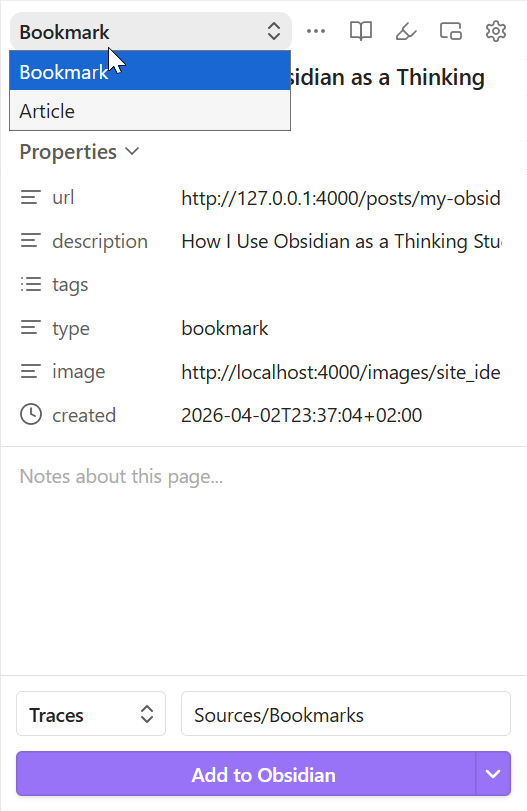
Both profiles can be imported directly into the Web Clipper extension. Open the extension settings, go to Templates, and paste either block below.
Bookmark profile:
{
  "schemaVersion": "0.1.0",
  "name": "Bookmark",
  "behavior": "create",
  "noteContentFormat": "",
  "properties": [
    { "name": "url",         "value": "{{url}}",   "type": "text"      },
    { "name": "description", "value": "{{title}}", "type": "text"      },
    { "name": "tags",        "value": "",          "type": "multitext" },
    { "name": "type",        "value": "bookmark",  "type": "text"      },
    { "name": "image",       "value": "{{image}}", "type": "text"      },
    { "name": "created",     "value": "{{date}}",  "type": "datetime"  }
  ],
  "triggers": [],
  "noteNameFormat": "Bookmark - {{title}}",
  "path": "Sources/Bookmarks"
}
Article profile:
{
  "schemaVersion": "0.1.0",
  "name": "Article",
  "behavior": "create",
  "noteContentFormat": "{{content}}",
  "properties": [
    { "name": "title",   "value": "{{title}}", "type": "text"      },
    { "name": "source",  "value": "{{url}}",   "type": "text"      },
    { "name": "read",    "value": "",          "type": "checkbox"  },
    { "name": "tags",    "value": "",          "type": "multitext" },
    { "name": "image",   "value": "{{image}}", "type": "text"      },
    { "name": "type",    "value": "article",   "type": "text"      },
    { "name": "created", "value": "{{date}}",  "type": "date"      }
  ],
  "triggers": [],
  "noteNameFormat": "Article - {{title}}",
  "path": "Sources/Articles"
}
The Theme
I’ve tried many themes but never felt comfortable moving away from Baseline — by the same creator as Cupertino. It gives the visual consistency I was always looking for: clean without being sparse, modern without calling attention to itself. The default theme is fine, but Baseline is the one I don’t want to change.
I run it with Obsidian’s color system set to moonstone and these font settings:
- Text: SF Pro — comfortable at longer reading lengths
- Interface: SF Pro Rounded — softer, easier to scan
- Monospace: SF Mono — consistent with how code appears everywhere else on my machine
- Base size: 18px — optimized for reading, not skimming
SF fonts aren’t distributed as standalone downloads — Apple bundles them inside platform installers. The most reliable source on Windows is the SF Pro font package from Apple’s developer site. Once you have the .pkg, open it with 7-Zip — navigate into the nested archive until you find .otf files — and extract those to C:\Windows\Fonts.
A handful of CSS snippets round out the setup: a full-width snippet that removes the default line-length cap on wider screens. The Style Settings plugin handles per-theme configuration without touching CSS directly — if your theme supports it, it’s worth having.
Core Plugins I Actually Use
Obsidian ships with a long list of optional core plugins. These are the ones I keep on:
| Plugin | What I use it for |
|---|---|
| Backlinks | See which notes link to the current one — the essential connection layer5 |
| Canvas | Visual thinking and brainstorming; these live in Journal/Brainstorming
|
| Bases | Query notes dynamically — my primary tool for reading lists, bookmarks, and project views |
| Outgoing links | Quick view of what the current note connects to |
| Properties | Structured metadata on notes — status, tags, dates |
| Daily notes | The consistent entry point for captures and journaling |
| Templates | Predefined note structures for recurring note types |
| Command palette | The main navigation method — faster than any sidebar |
| Outline | Document structure at a glance for longer notes |
The file explorer is off — replaced by a community plugin that does the job better. The graph view is off too. It looks meaningful in screenshots; I’ve never made a decision based on it.
Community Plugins
This is where the real configuration happens. I’ll cover the ones that changed how I actually work, not just the ones I installed.
Search and Discovery
Omnisearch replaces the built-in search with relevance-ranked results instead of simple keyword presence. Paired with Text Extractor, it indexes the content of PDFs and images in the vault — those files become fully searchable alongside notes.
Writing and Input
Various Complements adds autocomplete as you type — note names, tags, and words drawn from your own writing. I no longer need to remember the exact title of a note to link to it.
Smart Typography handles typographic details automatically: curly quotes, em dashes from double hyphens, ellipses from triple periods. It’s a small thing, but absence is noticeable.
Auto Link Title fetches the page title when you paste a URL, turning a raw link into a properly labeled Markdown link.
Obsidian Linter enforces formatting consistency on save — trailing spaces, YAML frontmatter structure, heading spacing — without requiring any active attention.
Reading and Research
Book Search pulls metadata from Google Books when you type a title, creating a note with author, cover, publication year, and whatever template you’ve defined. The right starting point for reading notes.
Spaced Repetition turns any note into flashcard material. I use it selectively — mostly for terminology I want to retain from documentation or technical reading — rather than feeding it the entire vault.6
Kindle Plugin imports Kindle highlights directly into Obsidian. If you annotate while reading, this closes the gap between what you marked and what lives in your notes.
Structure and Navigation
Notebook Navigator replaces the file explorer with a panel that shows the folder structure with preview text and better visual hierarchy. The creator has done enough to make it a genuine improvement over the core plugin — I hope Obsidian ships something similar natively.
Pretty Properties and Data Cards are visual companions to these — the former renders note properties cleanly in reading view, the latter turns query results into card grids rather than tables.
Output and Sharing
Excalidraw embeds a full diagramming tool inside Obsidian. I use it for architecture sketches, UI wireframes, and anything that needs spatial arrangement rather than linear text. Files save as plain text and stay in the vault like any other note.
Share Note generates a public read-only link for any note. The fastest path to sharing something from the vault without exporting it manually.
Rich Foot adds backlinks, tags, and date metadata to the footer of every note in reading view — relationships become visible without opening the backlinks panel.
Link Embed turns pasted URLs into embedded previews. I use it sparingly, mostly in reference notes where a visual snapshot of the source is more useful than a bare link.
A Note on AI and Task Management
I don’t use AI plugins in Obsidian. This is a deliberate choice: the vault is where I think, and I want it to stay that way. Plugins like Copilot and Smart Connections exist and work well for those who want them — they’re simply not what I want in a space meant for focused work.
Task management I’ve moved out of Obsidian entirely. A dedicated app with reminders and calendar integration handles that better than any plugin can. This comes from a broader philosophy I hold about software: an app should do one thing and do it very well. I’m not a fan of super apps that try to cover everything — they end up doing most things adequately and nothing particularly well. Obsidian is a thinking tool. A task manager is a commitment tool. Conflating the two weakens both. There’s also a practical constraint: too many plugins — especially ones built without careful attention to performance — slow Obsidian down noticeably. Keeping the plugin list lean is part of keeping the workspace functional.
Obsidian Sync
Obsidian Sync is the official first-party sync service. It keeps vaults in sync across devices with end-to-end encryption (AES-256) and syncs settings and plugin configurations alongside notes. Version history goes back 1 month on the Standard plan and 12 months on Plus.
For years I relied on Dropbox and later Google Drive, and honestly neither gave me real problems on desktop. The friction showed up on mobile. Both services don’t support true two-way sync on iOS and Android — they rely on manual downloads or polling through third-party apps, which means changes don’t propagate in real time. You open Obsidian on your phone, and the vault is a few minutes behind, or you have to remember to trigger a sync manually. Third-party workarounds exist, but polling at intervals isn’t the same as instant propagation, and the lag was noticeable enough to break the habit of reaching for the vault on mobile.
Once I decided that Obsidian was my primary base for notes — not a secondary tool I might abandon — the subscription made sense. The experience since then has been meaningfully better: changes appear across devices immediately, settings and plugins stay consistent, and I’ve stopped thinking about sync as something to manage. If you’re just starting out, a folder in Dropbox or iCloud is a reasonable place to begin. But if you reach the point where the vault is something you genuinely depend on and you want to use it on mobile without friction, Sync is worth it.
Where to Start
The setup here took time to arrive at. Most of it came from months with a simpler version — noticing what I actually reached for, and adding only what solved a friction I was already feeling. The system isn’t precious. Notes get messy, links become stale, and some days the daily note stays empty. That’s fine. The goal isn’t a perfect knowledge graph — it’s a place where the thinking you did yesterday is still available today.
If you’re starting from scratch: resist the impulse to install every plugin that looks useful. Start with daily notes and backlinks. Add one more when something is genuinely missing. Let the rest come from actual use, not from someone else’s setup — including this one. The same principle that applies to hesitation in decisions applies here: a pause to reflect is useful, but waiting for the perfect configuration before starting is just avoidance.
-
How to Take Smart Notes — Sönke Ahrens (2017). The book that brought Luhmann’s Zettelkasten method to a wide audience. Practical and grounded, it argues that writing is not the output of thinking — it’s the process of thinking itself. ↩
-
As We May Think — Vannevar Bush, The Atlantic (1945). Written before personal computers existed, it imagined a device called the Memex — a machine for storing and retrieving linked documents by association rather than index. The conceptual root of hypertext and linked notes. ↩
-
Communicating with Slip Boxes — Niklas Luhmann (1981). The original essay by the sociologist behind Zettelkasten. Short and dense. Luhmann maintained a network of over 90,000 notes across his career; this is his account of how the system worked. ↩
-
Building a Second Brain — Tiago Forte (2022). Introduced the PARA method and the concept of a digital workspace that extends your memory. More prescriptive than Ahrens, but useful as a structural starting point. ↩
-
Andy Matuschak’s Working Notes — Andy Matuschak (ongoing). A public Zettelkasten from a researcher at the intersection of learning science and software design. The notes on evergreen notes and spaced repetition are particularly worth reading. ↩
-
Make It Stick: The Science of Successful Learning — Brown, Roediger & McDaniel (2014). Not about PKM directly, but about the cognitive science of retention — retrieval practice, spaced repetition, interleaving. The empirical foundation for why any note-taking system is more effective when it involves active recall. ↩